Mobile responsive testing without a device lab

Most pages look fine on the screen they were built on. Then the viewport narrows. The page reflows, the header stays wide, and the basket slides off the edge where nobody can tap it. Customers meet that layout on a commute. If the only browser you test is the one on your desk, that is where the failure shows up first.
I want one Flow that covers phones, tablets, foldables and smart displays, and a Result that shows me which device failed and at which Test Step. That is mobile responsive testing in DoesQA, without a device lab.
Cover phones, tablets and foldables
The Open step starts every Test Case. Set the Runner to Simulated Device when you need a named phone or tablet preset. Simulated Device runs the Test Case with a named device preset, such as an iPhone. It sets viewport, user agent, and touch behaviour for that device. DoesQA uses its own custom engine.
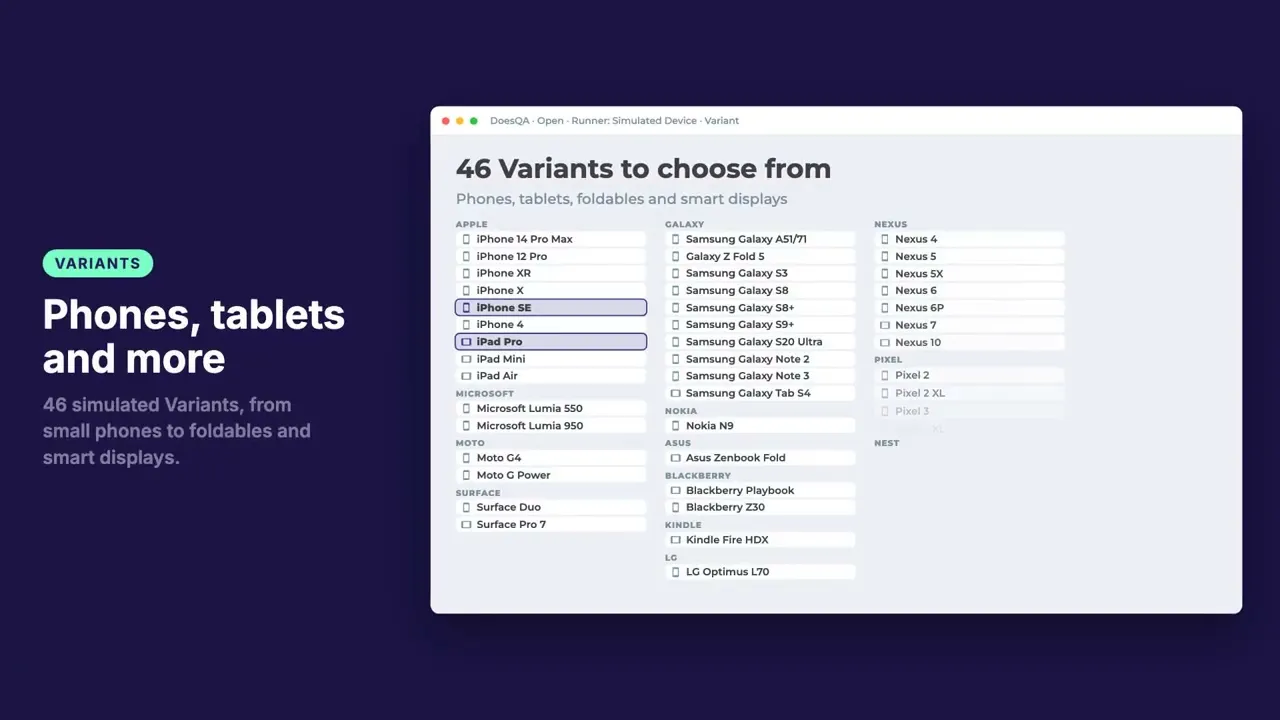
Cross-browser testing in DoesQA supports over 40 phone, tablet, foldable and smart display presets, 46 Variants today, from small phones and big phones to tablets, foldables and smart displays. Pick iPhone 14 Pro Max, iPad Pro, Galaxy Z Fold 5, Pixel 7, Nest Hub and more.
Pick a Variant on the Open step, then build the journey once. The Open step also sets Language, Timezone and Throttle (4G, 3G, 2G, Slow Wifi and more).
Add one Open step per device
Add one Open per device and join them to the same steps. Each Open becomes its own Test Case, running the same journey.
In the Flow Builder, give one Flow an Open on a phone and an Open on a tablet, then connect both to the same next steps. Flow Branch shapes call this joined starts: several Opens meet, then share steps. You edit the common journey once. Each unique path from an Open to an end is a Test Case.
Give one Flow an Open on a tablet and an Open on iPhone SE. The tablet passes. On iPhone SE, a Check on the basket fails when the basket sits off the screen. Fix the header and run it again.
See which device and Test Step failed
Each device runs as its own Test Case, so you see exactly which one failed and at which Test Step.
Open the Test Case in Run History for the step timeline. Each step can show its status, a screenshot, when it started, and how long it took. When the Run finishes, the video is available to review. Go back to the Flow, adjust the layout or the step, and run it again.
Run device Tests on a Schedule
These are ordinary Test Cases, so they run in Packs, on a Schedule or from your CI/CD pipeline, with screenshots and video in Run History.
Point a Schedule at the Flows that cover your key journeys on a phone and a tablet. Start the same pack from GitHub Actions, GitLab CI, Bitbucket, Azure DevOps or a script when a build lands. DoesQA results show as Checks on pull requests for GitHub, GitLab, Bitbucket, Azure DevOps and other providers. The CI/CD integrations page lists the ways to start those Runs. Automated test scheduling in DoesQA keeps the same journeys on the clock.
Start with the screens your customers use
Start with a small phone, a big phone, a tablet and a foldable. Add a smart display if your product appears there. Put the Flows on a Schedule. Read each failure as its own Test Case, with the step, the screenshot and the video.
The Open docs list every Runner and Variant under Available Variants and Simulated Devices. Simulated Device in the terminology page defines the preset. Flow Branch shapes shows how several Opens share one journey. Cross-browser testing in DoesQA is the feature page.
Visual regression testing: check how the page looks shows how to catch visual change on a page once the layout holds.
Start free trial. Cancel online.


