Visual regression testing: check how the page looks

A vampire has no reflection. He stands in the room, and the mirror shows nothing. Some bugs work the same way: the code says the button is there, and the customer sees nothing at all. Visual regression testing is the mirror that catches them.
The button that passed every functional test
The Add to basket button exists. The markup says so. The label says so. Then a style change lands, and the button turns white on a white background.
Every check in the pack passes. Each one asks whether the button is there, and it is. In the code, the button is perfect. On the page, a customer looks for it and sees a blank space where the sale should start.
That is the vampire. Present in the code, missing from the page.
Visual checks see what customers see
Presence checks earn their place. They answer precise questions about an Element, and the Element states guide sets them out. Check Exists confirms an Element is in the DOM. Check Displayed confirms it is shown on the page. Check Visible confirms it sits inside the current viewport.
Those are questions about structure and position. Your customer asks a different one: can I see it, and does it look right? With the white-on-white button, every presence check says yes, and the honest answer to the customer's question is no.
So you need a Test Step that looks at the page the way the customer does.
Three visual testing steps in DoesQA
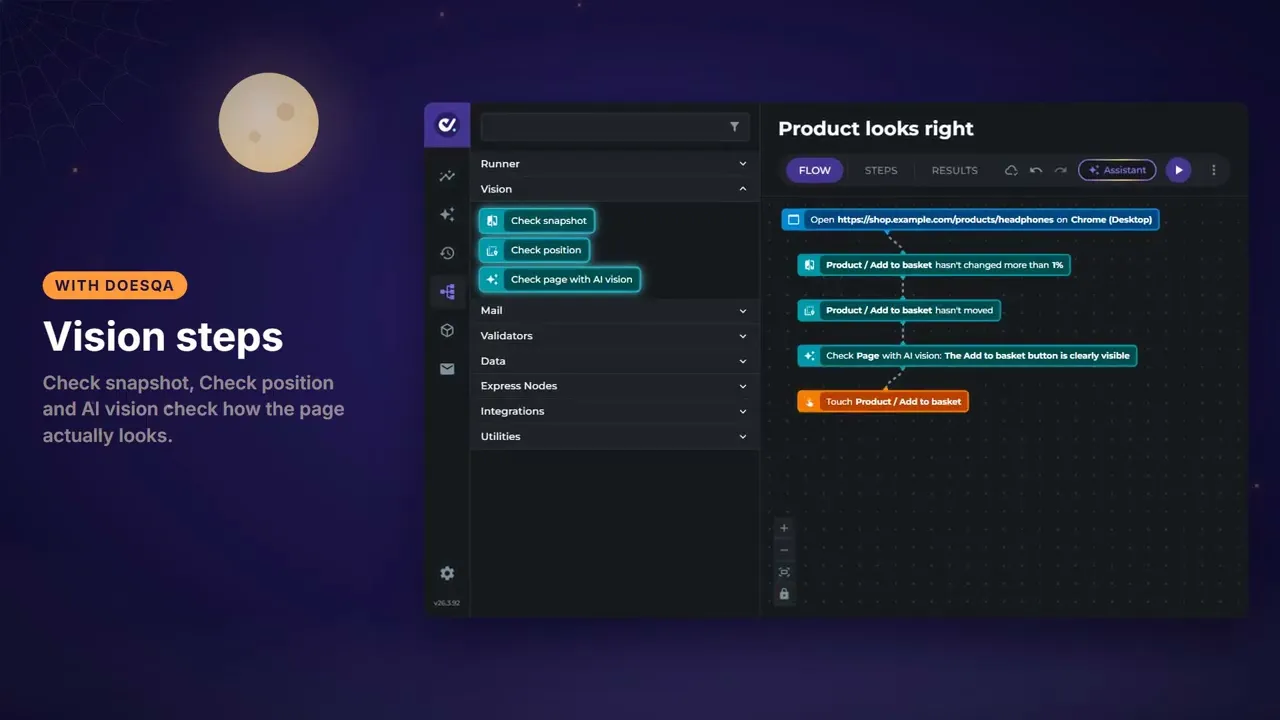
Vision Test Steps watch what is on screen. DoesQA has three of them.
Element Snapshot compares the page or an Element with its control image. You set how much change is acceptable. Changed more than that? The Test Step fails, and you compare the two in the Result.
Element Position compares where an Element sits on screen with a saved control. It catches the button, banner or nav item that moved after a layout change.
AI Vision checks the page or an Element against what a person should see, written in plain English. "The Add to basket button is clearly visible." AI Vision checks it for you.
Point Element Snapshot at the Add to basket Element. When a style change turns it white on white, the look changes by more than you allow, and the step fails. Write the AI Vision expectation and the failure message reads like the rule you care about. Either way, the vampire shows up in the mirror.
Your first Run sets the visual baseline
Setting up the control takes one Run. The first successful Run stores the current look as the control, and later Runs compare against it. Open the step in the Run Result to review the Control and the Actual, and the comparison views between them.
When a redesign is intentional, use Update Snapshot Control on that step, and future Runs use the new baseline. When a region changes on purpose all the time, such as a clock, an ad or an avatar, add it to Excluded elements and it stays out of the comparison.
Pick a tight target. Mode Element on one component keeps failures easy to read, and a durable Selector keeps Element Position tracking the same control on every Run.
Visual and functional testing in one Flow
Vision steps run in the same Flow as every other Test Step. A journey opens the product page, checks the Add to basket button with Element Snapshot, asks AI Vision whether it is clearly visible, and then touches it to carry on to checkout. One Run covers whether the journey works and whether it looks right.
That is why visual regression testing in DoesQA lives inside your functional pack, with the control keys, Excluded elements and shared controls to keep it tidy as the pack grows. It works on any page your customers touch, across every platform DoesQA tests.
Where to add visual checks first
Start with the screens where a customer has to see something to buy: the Add to basket button, the price, the checkout button. Add one vision step to each. The next style change that turns something invisible fails a Test Case instead of a sale.
Add visual checks walks through all three steps in the Flow Builder, and AI Vision shows how written checks sit beside pixel and position checks. Every test was green. The site was broken anyway. shows what green Results can hide when nobody checks the experience.
Start free trial. Cancel online.


