Scheduled test runs with Slack alerts and AI summaries

Your key journeys break on their own timetable. A login stops sending its email. A checkout link dies. A page that loaded at lunch flatlines after dinner. If the only tests you run are the ones someone starts by hand, the first person to find the problem is a customer.
I want my journeys checked on a timetable, with the Result landing where the team already looks. That is what scheduled test Runs with Slack alerts give you in DoesQA.
Automated test scheduling for every key journey
A Schedule starts a Run for you on a repeating timetable. You set it up once under Settings, and it keeps watch over your journeys through the day and night, whether anyone is at a desk or not.
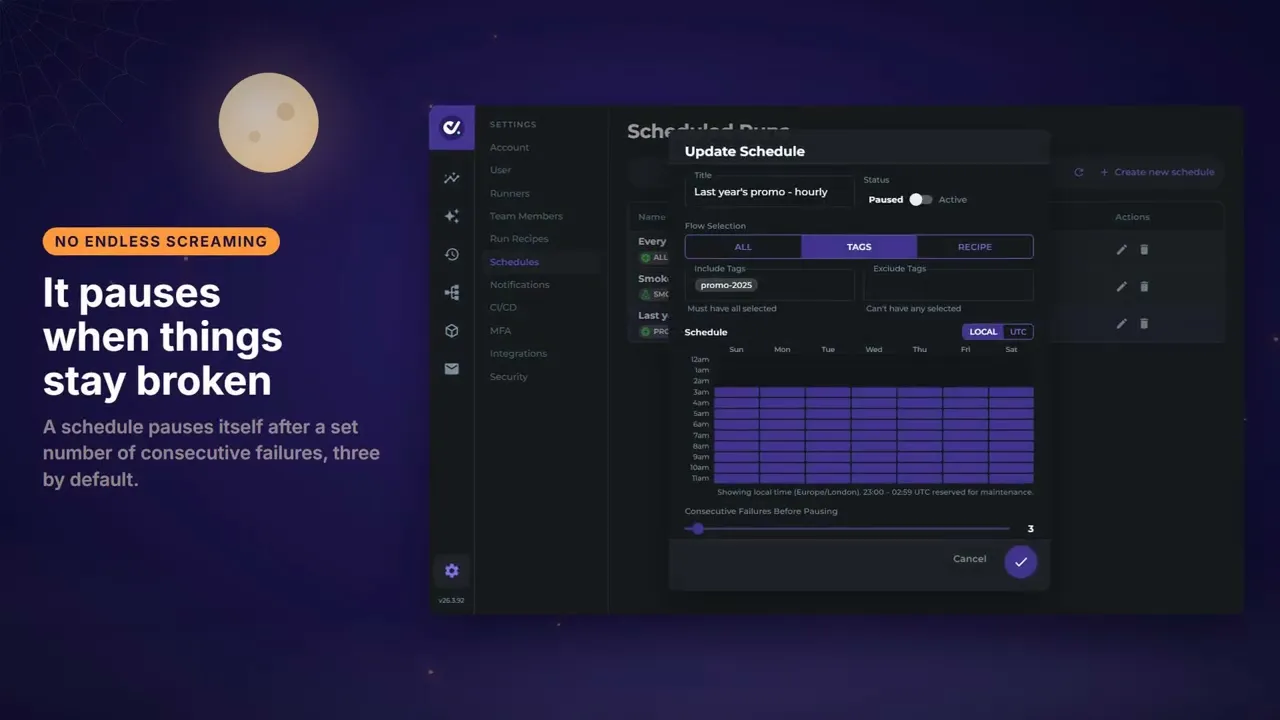
Choose which Flows run: every Flow in the account, Flows that match your Tags, or the Flows in a Run Recipe.
Pick the hours on the Schedule grid, in your Local time or in UTC. Hourly checks on your most important journeys are one Schedule away.
Find every scheduled Run in Runs, labelled with your Schedule title.
Use one Schedule for nightly regression and another for early morning production checks. Point a third at staging. Automated test scheduling in DoesQA complements your CI/CD pipeline, so a release gets tested on deploy and the live site gets tested on the clock.
Test result alerts for Slack, Teams and email
A scheduled Run only helps if someone hears about the Result. Notifications send Run results to four places:
Email to people in your account.
Slack, into the channel you choose.
Microsoft Teams, into a linked channel.
A webhook, with a JSON payload for any other system.
Each rule lives under Settings, Notifications, in Live Updates, Passed Run or Failed Run. Then you pick the Run Types that trigger it: User, CI/CD Webhook, Schedule or Child Runs. Tick Schedule and every scheduled failure reaches the right channel. Keep stakeholders on production smoke Results and send detailed failure alerts to engineering.
Slack and Teams connect once under Settings, Integrations. Read connecting Slack and connecting Microsoft Teams. Every alert channel DoesQA supports sits on the alert integrations page.
AI failure summaries in the Slack thread
An alert tells you something failed. The next question is why. When a scheduled Run fails and the alert lands in Slack, the AI Summary follows as a reply in the same thread, when DoesQA AI is on. It is on by default for new accounts.
The summary gives a short title and a clear write-up of what went wrong and what to try next. The team reads the failure, the cause and the next step in one place. Triage starts in the thread, and you open DoesQA when you are ready to act.
Automation Intelligence summaries draw on the step data, screenshots, Flow structure and failure history in your account, so each one speaks about your Flows and Elements.
Pause a broken Schedule after repeated failures
Some failures need a fix before the next Run can tell you anything new. DoesQA handles that for you. Each Schedule has a setting called Consecutive Failures Before Pausing. You choose how many failed scheduled Runs in a row pause the Schedule.
A passing scheduled Run resets the count, and so does saving the Schedule. Once the fix is in, set the Schedule's Status back to Active and the Runs carry on. A configurable number of consecutive failures stops a broken Schedule from keeping a noisy failing Run on the calendar, so your alerts stay worth reading.
Set up your first scheduled Run
Start with the journeys that earn the money: sign up, log in, search, basket and checkout. Put them on a Schedule. Add a Slack, Teams, email or webhook rule for Schedule Runs. Turn on DoesQA AI if it is off. From then on, every scheduled Run is on the record, and every failure in Slack arrives with a summary.
Schedules and Notifications in the docs cover every field. 6-hour Production Automation Test Pack shows how to build the production pack worth scheduling.
Start free trial. Cancel online.


