Create and run browser tests without writing code

Most teams buy one tool to write tests, another to run them, and a third to make sense of the failures. The pack grows. The handoffs grow with it. Coverage stays thin because the work of authoring, executing and diagnosing lives in separate places.
I want one place that covers the whole path: create the Tests, run them, and understand the Results. That is what DoesQA gives you, without writing code.
Write Test Steps as plain sentences
New Flows open in the Scenario editor. It shows each Test Step as a plain-language sentence, and you type supported sentence patterns with autocomplete for your Elements and Values. Open a page, touch a control, check that something is displayed, and run. The Scenario editor covers supported single-path Flows. For other steps, switch to the Flow tab.
Click the part of the sentence you want to change: a URL, an Element name, or a Value. Changes save as you work. When the journey is ready, run or preview from the toolbar and open Results the same way you would from the canvas.
Scenario editor on does.qa is the first path into a Flow. The same Test Steps stay with you when you want more power.
Branch journeys in the Flow Builder
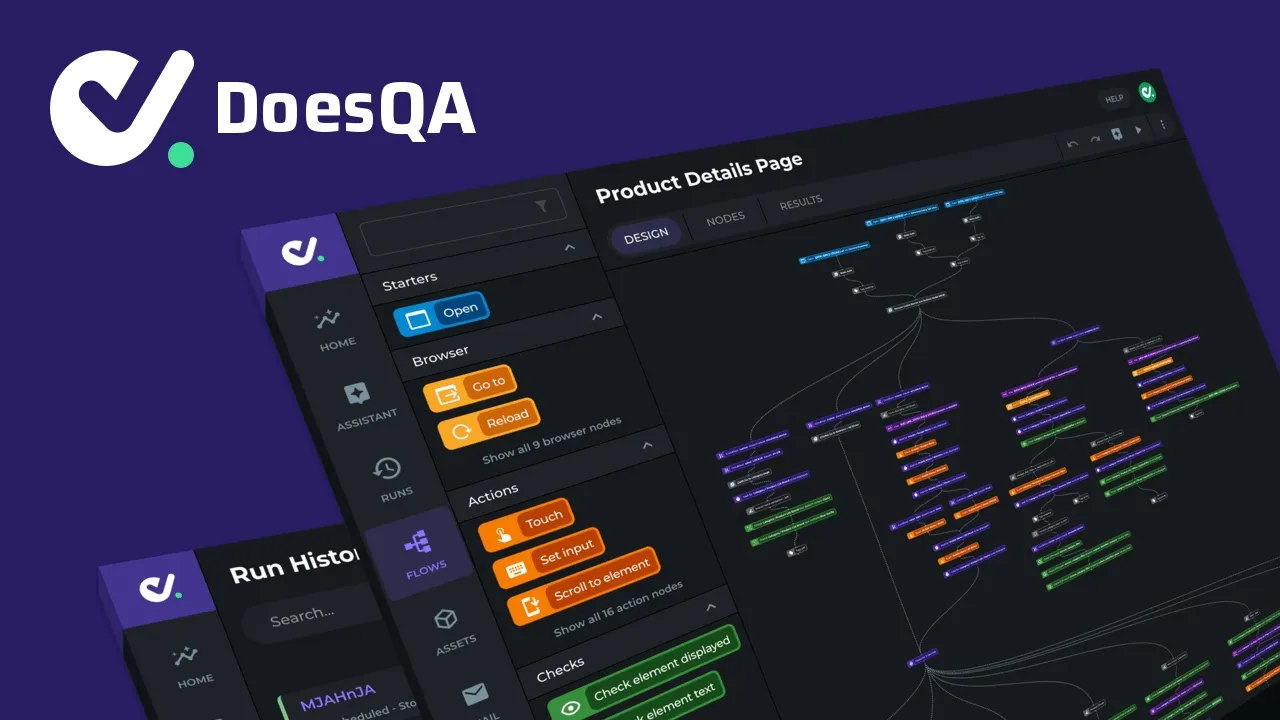
Select the Flow tab and you are in the Flow Builder. You see the same Test Steps on a visual canvas. The work you did in the Scenario editor is already there.
Drag steps from the library, connect them, and grow the design into full journeys. Add Flow Branches when one Flow should cover more than one path. Gate a branch with Condition. Use Loop when steps should repeat. Drop in Step Groups for shared login or setup. Each unique path becomes its own Test Case, while shared steps stay shared.
After Getting Started, journey guides use the Flow Builder as the default way to build. Author once, then choose the view that fits the work in front of you.
Build Flows with an AI agent
Your AI coding agent can join the same account over MCP. One connection to https://mcp.ai.does.qa/mcp exposes 50+ MCP tools. Agents author Flows, Test Steps and Elements, and run and triage Tests.
Pass and fail come from real browsers and the Steps you or the agent configured. The Flow Builder stays the primary way people author Tests. MCP is how an agent builds alongside you.
DoesQA AI is optional and layered. Every Flow, Element and Run works with AI features off.
Run Test Cases in parallel
A Run is a group of Test Cases started together. Test Cases run in parallel on hosted Test Runners.
Open a Run to watch Test Cases move through Queued, Creating Runner and Running. Open a Test Case for the step timeline. Higher concurrency usually means faster overall Runs. You set Max Concurrency and Run Concurrency under Settings, Runners, when you want a lower load on a shared staging site or a rate-limited API.
Trigger Runs from CI/CD or Schedules
Start a Run by hand from a Flow, a Test Pack or a Run Recipe. Start one from your pipeline. Start one on the clock.
CI / CD under Settings is where you create the webhook keys that let GitHub Actions, GitLab CI, Bitbucket, Azure DevOps or a script start Runs without logging into DoesQA. Keep one key per environment or pipeline. Point the Universal Webhook at the Flows that matter for every build.
A Schedule starts a Run on a repeating timetable in Local time or UTC. Use one for nightly smoke coverage and another for regular checks against staging. Automated test scheduling in DoesQA complements CI/CD, so a release gets tested on deploy and the live site gets tested on the clock.
Understand failures with screenshots and video
After you select Run, DoesQA opens the Flow's Results tab. Open a Test Case to see the step timeline. Each step can show its status, a screenshot, when it started, and how long it took. When the Run finishes, the video is available to review.
Start with the first failing Test Step. View the screenshot and the step response. Go back to the Scenario or Flow tab and adjust that step.
When DoesQA AI is on, a failed Test Case or Run can show an AI Summary with a short title and next steps. Automation Intelligence summaries draw on step data, screenshots, Flow structure and failure history in your account, so each one speaks about your Flows and Elements. Open Assistant from the summary to keep working on that failure in chat.
Create your first Flow today
Start in the Scenario editor with Open, Touch and Check. Switch to the Flow Builder when the journey needs branches. Connect an AI agent over MCP when you want help authoring. Point CI/CD at every build and put key journeys on a Schedule. Read failures with screenshots, video and an AI Summary.
Create and run your first Flow and Understand your results walk through the path end to end. Scheduled test runs with Slack alerts and AI summaries shows how to keep those Results arriving where the team already looks.
Start free trial. Cancel online.


